The home office is the most expensive room in the house to move incorrectly. A single dropped monitor, a data loss event from an improperly transported hard drive, or a week of productivity downtime because the internet service provider appointment was not scheduled before moving day can cost more than the entire moving bill. Since 2020, the home office has evolved from a spare desk in a bedroom to a multi-monitor workstation with motorized furniture, dedicated networking hardware, NAS devices, and professional audio and video equipment. The complexity of that setup — and the replacement cost of every component in it — requires a packing approach that is categorically different from any other room in the house.
Data Protection Precedes Every Physical Step
No cable should be disconnected and no device should be moved until all data is backed up through at least two independent methods. This is not a precaution against catastrophic failure. It is a precaution against the routine mechanical stress that every spinning hard drive experiences during transport.
Hard disk drives use magnetic platters rotating at 5,400 to 7,200 RPM with a read/write head that floats approximately three nanometers above the platter surface during operation. When the drive is powered off, the head parks in a designated landing zone at the platter edge. Physical shock during transport — from a box being placed down hard, a truck hitting a road irregularity, or a bag being dropped — can displace the actuator arm from its parked position and drive the head into the platter surface. The result is a head crash: physical scoring of the magnetic coating, permanent data loss in the affected sectors, and in severe cases complete drive failure. Solid-state drives have no moving parts and are significantly more resilient to physical shock, but NAND flash memory cells are vulnerable to electrostatic discharge and extreme thermal exposure, both of which occur routinely in moving truck cargo areas.
Back up to an external SSD and to cloud storage — Google Drive, Dropbox, or OneDrive — before packing begins. Copy critical work files to a USB drive as a tertiary layer. Download email archives and export browser bookmarks to a local file. The external drive and USB drive travel in your personal vehicle, not the moving truck. The total time investment for a comprehensive backup is two to four hours. Data recovery from a mechanically damaged HDD starts at several hundred dollars and is not guaranteed.
NAS devices — network-attached storage systems — require their individual drives to be removed and packed separately before transport. A NAS chassis transported with drives installed concentrates the weight of multiple drives on the mounting rails and SATA connectors during any shock event. Remove each drive, label it with its slot position (Bay 1, Bay 2, and so on), wrap each one individually in anti-static bubble wrap, and pack them together in a single padded box that travels in your vehicle. Reinstalling drives in their original bay positions preserves the RAID array configuration.
Documentation Protocol Before Disconnection
Photograph every angle of your desk setup before touching a single cable. The back panel of each monitor showing port assignments — HDMI, DisplayPort, USB-C, Thunderbolt 4 — the cable routing paths, the position of the docking station, the arrangement of peripherals, and the under-desk cable management system. Take a short video narrating what each device does and where each cable terminates. This documentation eliminates the setup guesswork that turns a two-hour office reconstruction into an eight-hour one.
Label every cable before unplugging it. Masking tape and a marker, or printed cable tags, applied at both termination ends — not just one. A cable labeled at the monitor end but not at the computer end still requires guesswork during reconnection. For multi-monitor GPU setups with multiple DisplayPort or HDMI outputs, label cables sequentially: Display-1-GPU-Port-1, Display-2-GPU-Port-2, and so on. Group all cables belonging to a single device into a labeled zip-lock bag immediately after removal. Velcro cable straps are the correct fastener for coiling — not plastic zip ties, which can be overtightened, compressing internal copper conductors and causing signal degradation or wire failure at the stress point. Coil cables in a figure-eight pattern rather than a circular coil to prevent twist memory from forming along the cable jacket.
Packing Sequence, Materials, and Failure Mechanisms
Pack in reverse order of fragility and operational priority. Begin with peripherals — keyboard, mouse, webcam, headset, external speakers, USB hubs — which carry low replacement risk and straightforward packing requirements. Wrap each item individually in bubble wrap or a microfiber cloth and group them by device in a labeled medium box.
Anti-static bubble wrap is the correct material for all electronics — not standard pink or clear bubble wrap. Standard bubble wrap generates triboelectric charge as it contacts a surface, producing electrostatic discharge voltages that can reach 10,000 to 40,000 volts from ordinary handling. CMOS semiconductor components on circuit boards — including GPU cores, RAM modules, and processor substrates — can sustain permanent damage from ESD events as low as 30 volts, which is well below the threshold of human perception. Anti-static bubble wrap is formulated with carbon-impregnated polyethylene that dissipates rather than accumulates charge, eliminating this risk entirely.
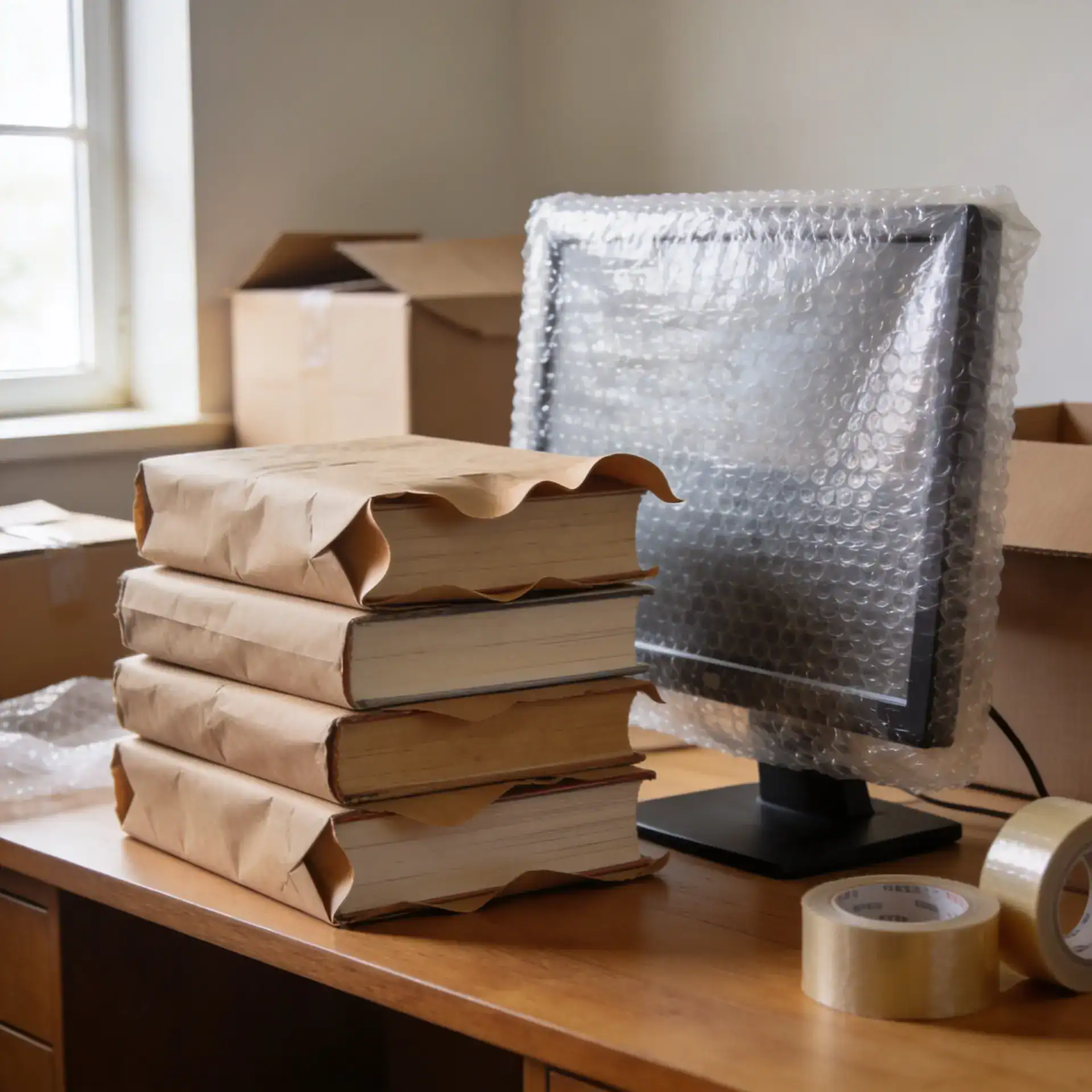
Monitors require the most precise packing protocol. IPS, VA, and OLED panel technologies are all vulnerable to pressure on the display surface. In IPS and VA panels, sustained pressure deforms the liquid crystal layer, causing permanent pixel misalignment visible as a bright spot or color shift. In OLED panels, the organic light-emitting diode substrate is bonded to the glass at the molecular level and cannot recover from surface compression. Remove the stand before packing and store all stand hardware — screws, mounting plate, cable routing clips — in a labeled zip-lock bag taped to the exterior of the monitor box. Clean the screen with a microfiber cloth before wrapping, because any particulate matter left on the panel surface becomes an abrasive trapped between the screen and the packing layer. Wrap in anti-static bubble wrap, apply foam corner protectors to all four screen edges, and pack the monitor upright in a double-walled cardboard box sized within two to four inches of the monitor dimensions. Excess void space allows lateral movement during transit that corner protection cannot counteract.
Desktop towers with discrete graphics cards require GPU removal before packing. Modern high-end GPUs — particularly triple-fan cooler models — weigh between two and four pounds. That weight, cantilevered on a PCIe x16 slot during transport, applies continuous bending stress to the slot’s solder joints on the motherboard. Transport vibration compounds this into cyclic loading, which produces fatigue cracking at the solder joint interface — a failure mode that manifests as intermittent display output or PCIe device not recognized errors after the move. Remove the GPU, wrap it separately in anti-static bubble wrap, and pack it flat in a padded box. Transport the tower with the motherboard oriented horizontally so gravity acts perpendicular to the board surface rather than parallel to it.
Printers require ink or toner cartridge removal before transport. In inkjet printers, the dye-based or pigment-based ink in installed cartridges is under capillary pressure maintained by the cartridge sponge structure. Vibration during transit disrupts this capillary equilibrium and can force ink out of the cartridge vent, into the printhead carriage, and onto adjacent components. In laser printers, loose toner powder in partially used cartridges spills freely when the printer is tilted beyond its designed orientation range. Remove all cartridges, seal them individually in zip-lock bags, and pack them in a temperature-stable environment — toner cartridges exposed to heat above 104°F (40°C) can fuse prematurely. Remove detachable paper trays and scanner lids, wrap them separately, and pack the printer upright in a double-walled box with two inches of cushioning on all sides.
Uninterruptible power supply (UPS) units used for desktop workstations contain sealed lead-acid batteries or lithium-ion battery packs that must be disconnected from the unit before transport. Sealed lead-acid batteries can vent hydrogen gas if tipped or subjected to impact, which creates a fire hazard inside a sealed moving box. Consult the manufacturer documentation for the correct battery disconnection procedure for your specific UPS model. Pack the battery and the UPS chassis in separate boxes with their terminals protected.
Standing Desk Disassembly
An electric height-adjustable standing desk presents a disassembly challenge that most moving guides skip entirely. The motorized lift columns are robust, but the control box, memory preset controller, under-desk cable tray, cable snake, and adhesive cable routing clips require methodical removal and documentation before the desktop surface is detached from the frame.
Photograph the complete cable service loop system before removing anything. Electric standing desks use deliberate slack loops — U-shaped cable segments with enough length to accommodate full height extension without applying tension to port connections. When removing cables from the routing system, measure and note the service loop length for each cable so it can be replicated accurately at the new location. Cables routed too tightly on reassembly will stress the USB, DisplayPort, or power connections every time the desk moves through its height range, producing intermittent signal loss or port damage over time.
Detach the desktop surface from the frame by removing the mounting hardware — typically eight to twelve bolts depending on the manufacturer and desk size — and wrap the surface in moving blankets. The steel frame and lift columns can be transported as a unit if the assembled dimensions fit the truck, or disassembled at the column-to-base connection points for larger models. Label all frame hardware in a bag taped to the frame.
What Travels in the Vehicle and Why
External hard drives, SSDs, NAS drives, laptops, and all portable storage media must travel in the owner’s personal vehicle. The cargo area of an untempered moving truck reaches ambient temperatures on both extremes — above 120°F in direct summer sun and below freezing in Pacific Northwest winters. Thermal extremes cause condensation to form inside sealed electronic enclosures when a cold device is brought into a warm environment, because the dew point of the ambient air is reached on the cooler internal surfaces before the enclosure reaches thermal equilibrium. Powering on a device with condensation on its circuit board causes short-circuit events that can destroy the component.
Allow any electronics transported in cold conditions to reach room temperature for a minimum of two hours before powering them on. This equalization window is not optional for storage devices or motherboards. The two-hour window corresponds approximately to the time required for a room-temperature differential of 40°F or more to equalize through the thermal mass of a sealed device enclosure.
ISP Scheduling and Setup Sequence
Schedule the internet service provider installation appointment for the new address before moving day. In the Portland metro area, ISP installation appointments for new service — particularly fiber-to-the-premises installations — book one to two weeks out. A remote worker without connectivity for a week represents a direct productivity and income loss that no amount of efficient unpacking can recover.
On setup day, establish networking first. Power on the router or mesh Wi-Fi system before any workstation component, confirm the network connection is stable, and only then proceed to monitor and computer setup. Use your pre-move photographs to replicate cable routing, start with the primary display and the main computer, confirm that every device powers on cleanly and connects to the network, and proceed to peripheral and cable management reconstruction only after the core workstation is verified functional.
If you are managing a complete home relocation that includes a complex home office setup, communicating the electronics inventory and loading priority to your moving crew before the job starts ensures the correct boxes are loaded last onto the truck and unloaded first at the new address — keeping your downtime as short as possible.
For local moves throughout Portland, West Linn, and the surrounding area, Redefyne Moving & Storage handles electronics with the loading sequence and handling care your equipment requires. Reach out for a free quote today.